> For the complete documentation index, see [llms.txt](https://docs.shopwaive.com/llms.txt). Markdown versions of documentation pages are available by appending `.md` to page URLs; this page is available as [Markdown](https://docs.shopwaive.com/shopify/loyalty.md).

# Loyalty

Set up a points program from a ready template on the Loyalty page in Shopwaive. Go Live in 3 clicks, then put it on your store so customers can see and spend points. No Shopify Flow is needed

Shopwaive Loyalty is a points program that you set up on the **Loyalty** page in the Shopwaive app. Customers earn points on their orders, online and in Shopify POS, and spend them as a discount. You do not need Shopify Flow.

{% hint style="info" %}
Loyalty starts **Off** at every store. No points are paid at your store until you press **Start test** or **Go Live** yourself.
{% endhint %}

## Fastest launch <a href="#fastest-launch" id="fastest-launch"></a>

{% hint style="success" %}
**Live in 3 clicks, in about 2 minutes:**

1. In Shopwaive, click **Open Loyalty** on Home, or **Loyalty** in the app menu.
2. Click **Use this program** on **Points for every dollar**.
3. Click **Go Live**. Customers earn on orders from now on.

Going live needs a paid Shopwaive plan. Without one, the button reads **Choose a plan**. You can change every setting later in **All settings**. No ready program on step 1? See [Step 1](#step-1-choose-a-program).
{% endhint %}

Customers now earn points. They cannot see or spend them until you put your program on your store. Step 3 opens by itself after **Go Live**:

1. **Show it on your online store.** Under **Turn on loyalty in your theme**, click **Open theme editor**. Loyalty is already on there. Click **Save**. Then, under **Add a Rewards page to your online store**, click **Create Rewards page**. If Shopify asks to update Shopwaive's data access, click **Update**. Add the page to your store's menu, so shoppers can find it: see [Link your Rewards page](#link-your-rewards-page).
2. **Let customers spend points.** This depends on your Shopify plan:
   * **Shopify Plus**: click **Open checkout and accounts editor**, add the **Loyalty** block to your checkout, then click **Save**.
   * **Shopify POS, on any plan**: add the **Loyalty** tile in Shopify admin. See [Add the Loyalty tile to Shopify POS](#add-the-loyalty-tile-to-shopify-pos).
   * **Neither Shopify Plus nor Shopify POS**: customers collect points and see them, but cannot spend them.

Your program is on your online store in about 5 minutes. On Shopify Plus, the checkout block takes about 3 minutes more. The Loyalty tile takes about 1 minute for each smart grid template.

## Set up your program <a href="#set-up-your-program" id="set-up-your-program"></a>

In your Shopify admin, open Shopwaive. Click **Open Loyalty** on Home, or **Loyalty** in the app menu. The page takes you through three steps: **Choose**, **Launch** and **Show on your store**. On a paid plan, two clicks start a ready program: **Use this program**, then **Go Live**.

<figure><img src="https://1743155819-files.gitbook.io/~/files/v0/b/gitbook-x-prod.appspot.com/o/spaces%2F6HSAZj4RDucpQwVtzMYt%2Fuploads%2Fgit-blob-0bb5510a1b60d3ce74cb9fc8f9ab19f2e5a74e15%2Floyalty-app-menu.png?alt=media" alt="The Shopwaive app menu in the Shopify admin, with Loyalty selected"><figcaption><p>Loyalty in the Shopwaive app menu</p></figcaption></figure>

### Step 1: Choose a program <a href="#step-1-choose-a-program" id="step-1-choose-a-program"></a>

Click **Use this program** on one of the ready programs. Every value is filled in, and you can change your program later in **All settings**.

* **Points for every dollar** (Recommended): for example 5 points for every 1 of your currency spent, added when the order is paid, plus 100 points for joining.
* **Points after delivery**: points added 14 days after the order is delivered, so returned orders never earn, plus 100 points for joining.
* **Start blank instead**: Shopwaive's own starting values, to set up yourself in **All settings**.

Each card shows its program in one line. The drawing beside the cards shows your store with a sample shopper. If your customers already hold points, every program uses your store's points value, so the numbers on the cards follow it.

If your customers already hold balances in money, step 1 shows no program for your store. If those balances are points you imported from another loyalty app, see [Moving from another loyalty app](#moving-from-another-loyalty-app).

#### Moving from another loyalty app <a href="#moving-from-another-loyalty-app" id="moving-from-another-loyalty-app"></a>

Set your store to points before you import your customers' points:

1. In Shopwaive, open **Settings** > **Theme**. Set **Type** to **Loyalty and Rewards** and click **Save**.
2. Open **Settings** > **Checkout**. Under **Redemption**, set **Multiplier for redemption** to the points that make 1 of your currency. Use what your points were worth in your old app, for example 100. It is saved as you type it.
3. Import your customers' points: see [Import accounts](/shopify/accounts/import-accounts.md).

Every balance your customers hold then counts as points, and the points programs show on the Loyalty page with your points value. Already imported? Do steps 1 and 2 now. Until then, your customers' points count as money, and the **Redeem** block or the **Account** tile can spend them as money.

### Step 2: Launch <a href="#step-2-launch" id="step-2-launch"></a>

Check **What customers get**. Each row has **Change**, and your changes are kept as a draft as you go:

* **Name**: what customers see at checkout, in their account and on your Rewards page.
* **Earn**: the points for every 1 of your currency spent.
* **Added**: when points are added: when the order is paid, ships or is delivered. For **Points after delivery** the row stays at **Delivered**, and **Then wait** has 0, 7, 14 or 30 days.
* **Joining**: points for each new customer, or none.
* **Points value**: how many points take 1 of your currency off. See [What points are worth](/shopify/loyalty/redeem-expiry-and-refunds.md#what-points-are-worth).
* **Expiry**: 90, 180, 365 or 730 days after the points are added, or never.

Under **Add to your program** you can add the **Anniversary gift**: points every year on the day a member joined. It is optional.

The drawing beside the rows shows what customers see. Switch it between **All**, **Checkout**, **Account**, **Rewards page** and **POS**. **Checkout** shows only on Shopify Plus.

Then press **Go Live**, or click **Test with a few customers first**: see [Test with a few customers](#test-with-a-few-customers).

Starting a test or going live needs a paid Shopwaive plan. Without one, the button reads **Choose a plan** and opens the **Billing** page. Click **View all available subscription plans**, choose a plan and approve it on Shopify's page. Shopify brings you back to step 2. Then press **Go Live**. You can set everything up first.

### Step 3: Show on your store <a href="#step-3-show-on-your-store" id="step-3-show-on-your-store"></a>

Once your test or your program has started, step 3 lists the places to show it, under **Put it on your store**, with how many are done. Most buttons open Shopify's editor with the Shopwaive block ready, and you press **Save** there. A row is ticked when you come back to the Loyalty page, or when you click **Check again**.

Your program earns from the moment you go Live, whatever you do here. But customers see and spend points only where you add them. You need at least one place to spend points: the **Loyalty** block at checkout on Shopify Plus, or the **Loyalty** tile in Shopify POS. If you already use the **Redeem** block or the **Account** tile, they spend points too. The other places are up to you.

* **Turn on loyalty in your theme**: click **Open theme editor**. Shopify's theme editor opens with the **Shopwaive Loyalty** app embed already switched on. Click **Save**. About 1 minute.

<figure><img src="https://1743155819-files.gitbook.io/~/files/v0/b/gitbook-x-prod.appspot.com/o/spaces%2F6HSAZj4RDucpQwVtzMYt%2Fuploads%2Fgit-blob-663629f0da8b8bf014ff67d35d2b2349c2dab2fb%2FS5.png?alt=media" alt="Shopify&#x27;s theme editor, App embeds, with Shopwaive Loyalty switched on"><figcaption><p>The Shopwaive Loyalty app embed in Shopify's theme editor. Click Save.</p></figcaption></figure>

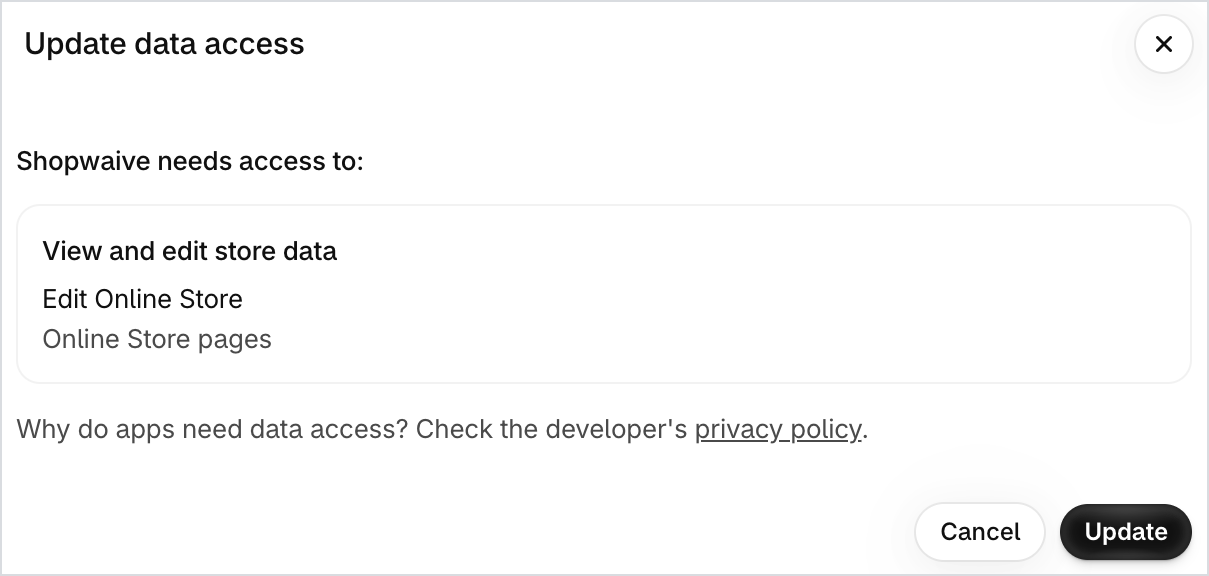
* **Add a Rewards page to your online store**: click **Create Rewards page**. The first time, Shopify asks to update Shopwaive's data access, so it can edit your online store pages. Click **Update**. Shopwaive makes the page at `/pages/rewards`, or at `/pages/loyalty-rewards` if your store already has a page at `/pages/rewards`. The row is ticked once loyalty is also on in your theme. About 1 minute. If you click **Cancel** there, your Rewards page stays in your customers' accounts, and you can click **Add it to your home page instead**.

<figure><img src="https://1743155819-files.gitbook.io/~/files/v0/b/gitbook-x-prod.appspot.com/o/spaces%2F6HSAZj4RDucpQwVtzMYt%2Fuploads%2Fgit-blob-034d0173d87ed7bb055c159e07974dd389069c3c%2FS6.png?alt=media" alt="Shopify&#x27;s Update data access window: Shopwaive needs access to edit Online Store pages"><figcaption><p>The first time you click Create Rewards page, Shopify asks to update Shopwaive's data access. Click Update.</p></figcaption></figure>

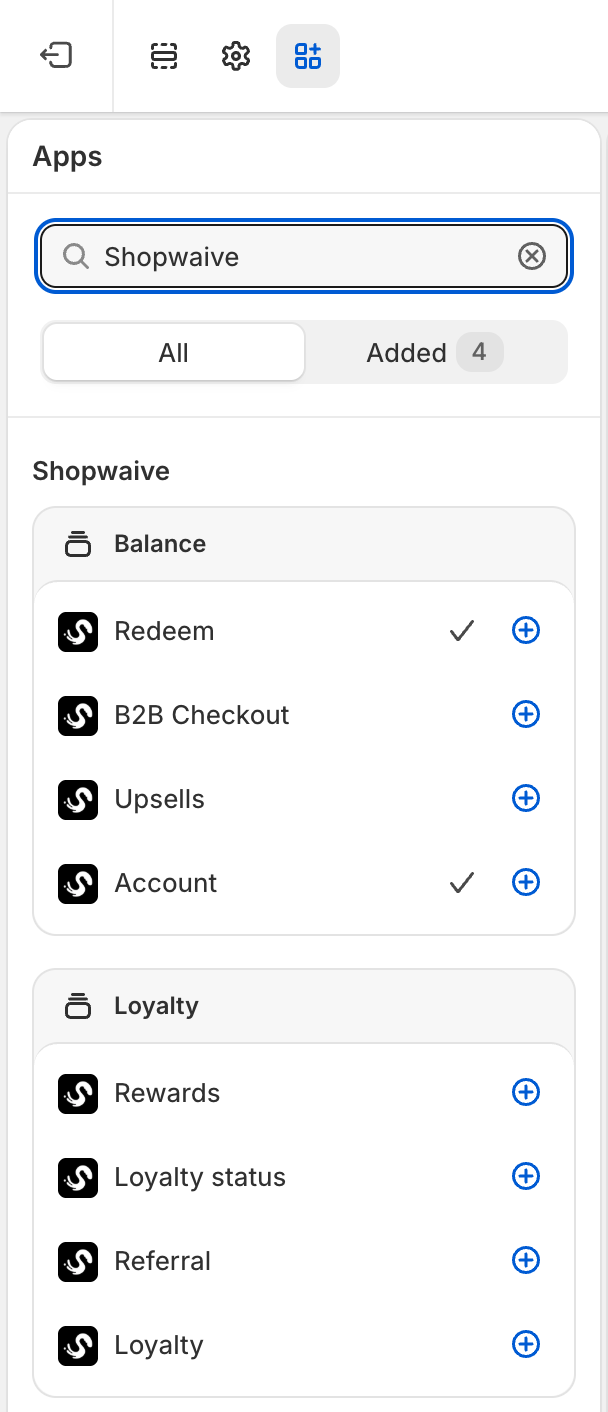
* **Add Rewards to customer accounts and checkout**: click **Open checkout and accounts editor**. Shopify's checkout and accounts editor opens at the Shopwaive **Loyalty** blocks. Add each one, then click **Save**. About 3 minutes. The row lists each block with the name Shopify shows:
  * **Rewards**: the Rewards page in customer accounts. Shopify offers to put Rewards in the account menu.
  * **Loyalty status**: the points card on the **Profile** or **Orders** page. On the order status page it shows the points of each order, which is optional.
  * **Loyalty**: the earn line on the **Thank you** page. On Shopify Plus, add it to checkout too: there it shows what the order earns and the rewards the customer can use, each applied with one press. On Shopify Plus this is where customers spend points online.

<figure><img src="https://1743155819-files.gitbook.io/~/files/v0/b/gitbook-x-prod.appspot.com/o/spaces%2F6HSAZj4RDucpQwVtzMYt%2Fuploads%2Fgit-blob-1e27318b9a8f35e9215b85c1ad50edf209bbdd71%2FS7.png?alt=media" alt="Shopify&#x27;s checkout and accounts editor, Apps, the Shopwaive Loyalty blocks"><figcaption><p>The Shopwaive Loyalty blocks in Shopify's checkout and accounts editor</p></figcaption></figure>

* **Add the Loyalty tile to Shopify POS**: see [Add the Loyalty tile to Shopify POS](#add-the-loyalty-tile-to-shopify-pos). About 1 minute for each smart grid template. On a plan without Shopify Plus, this is where customers spend points.

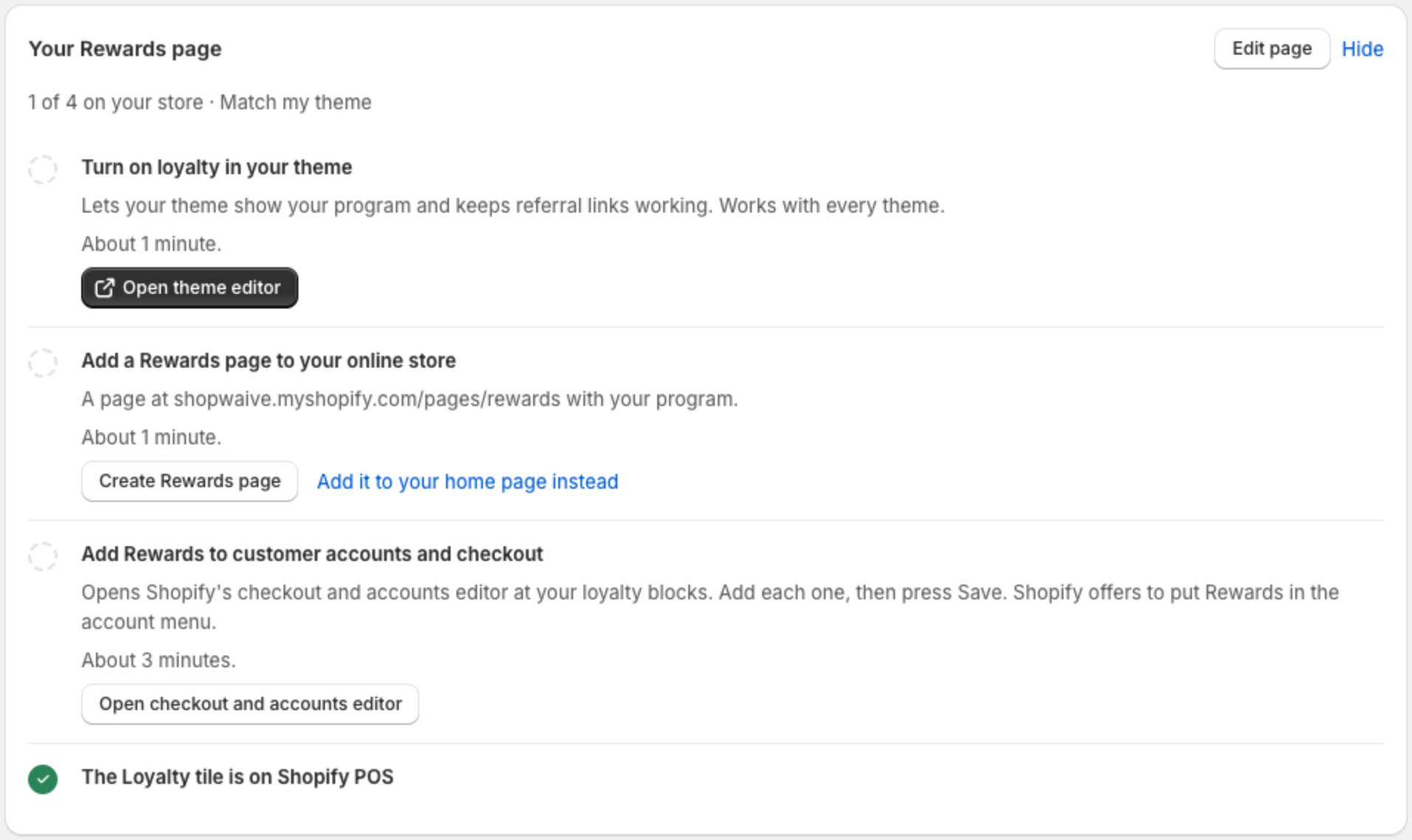
**Done** shows once every row is done, the Shopify POS row included. Until then the button reads **Finish later**. If you do not use Shopify POS, leave with **Finish later**: your program keeps running. Either way, the same list stays on the Loyalty page under **Your Rewards page**.

<figure><img src="https://1743155819-files.gitbook.io/~/files/v0/b/gitbook-x-prod.appspot.com/o/spaces%2F6HSAZj4RDucpQwVtzMYt%2Fuploads%2Fgit-blob-2ceea517d31305f34e189466d712d063e7ce51ec%2Floyalty-rewards-page-card.png?alt=media" alt="The Your Rewards page card on the Loyalty page, listing the places to show your program, with one done"><figcaption><p>The same list stays on the Loyalty page under Your Rewards page</p></figcaption></figure>

If your store has no online store theme, for example because you sell only in Shopify POS, the theme rows are not shown: add the Loyalty tile to Shopify POS (see [Add the Loyalty tile to Shopify POS](#add-the-loyalty-tile-to-shopify-pos)).

#### Link your Rewards page <a href="#link-your-rewards-page" id="link-your-rewards-page"></a>

Shoppers find your Rewards page through a link. Add the page to your store's menu in Shopify: see Shopify's guide to [editing menus](https://help.shopify.com/en/manual/online-store/menus-and-links/editing-menus), and choose **Pages**, then your Rewards page.

#### How your Rewards page looks <a href="#how-your-rewards-page-looks" id="how-your-rewards-page-looks"></a>

Step 3 also holds **Your Rewards page**. Your choices are saved as you make them:

* **Look**: **Match my theme**, **Soft**, **Bold**, **Light panel** or **Dark panel**. **Match my theme** uses your theme's fonts and colours.
* **Show**: the parts of the page: **Welcome and sign in**, **Points and tier**, **Ways to earn** and **Rewards**.
* **Rewards button on every page**: a small button in the corner of every page. You can tick it once your Rewards page is on your store.
* **More style**: accent colour, corner roundness, width, welcome alignment, and the page's headings.

The drawing beside it shows the page as you change it. Switch it between **Online store** and **Customer account**, and between **Desktop** and **Phone**. The look controls apply to the online store page.

## Add the Loyalty tile to Shopify POS <a href="#add-the-loyalty-tile-to-shopify-pos" id="add-the-loyalty-tile-to-shopify-pos"></a>

Add the tile in Shopify admin, once for each smart grid template your locations use:

1. Go to **Sales channels** > **Point of Sale**. On the **POS app** card, click **Edit**.
2. At the top, under **Smart grid template**, choose the template.
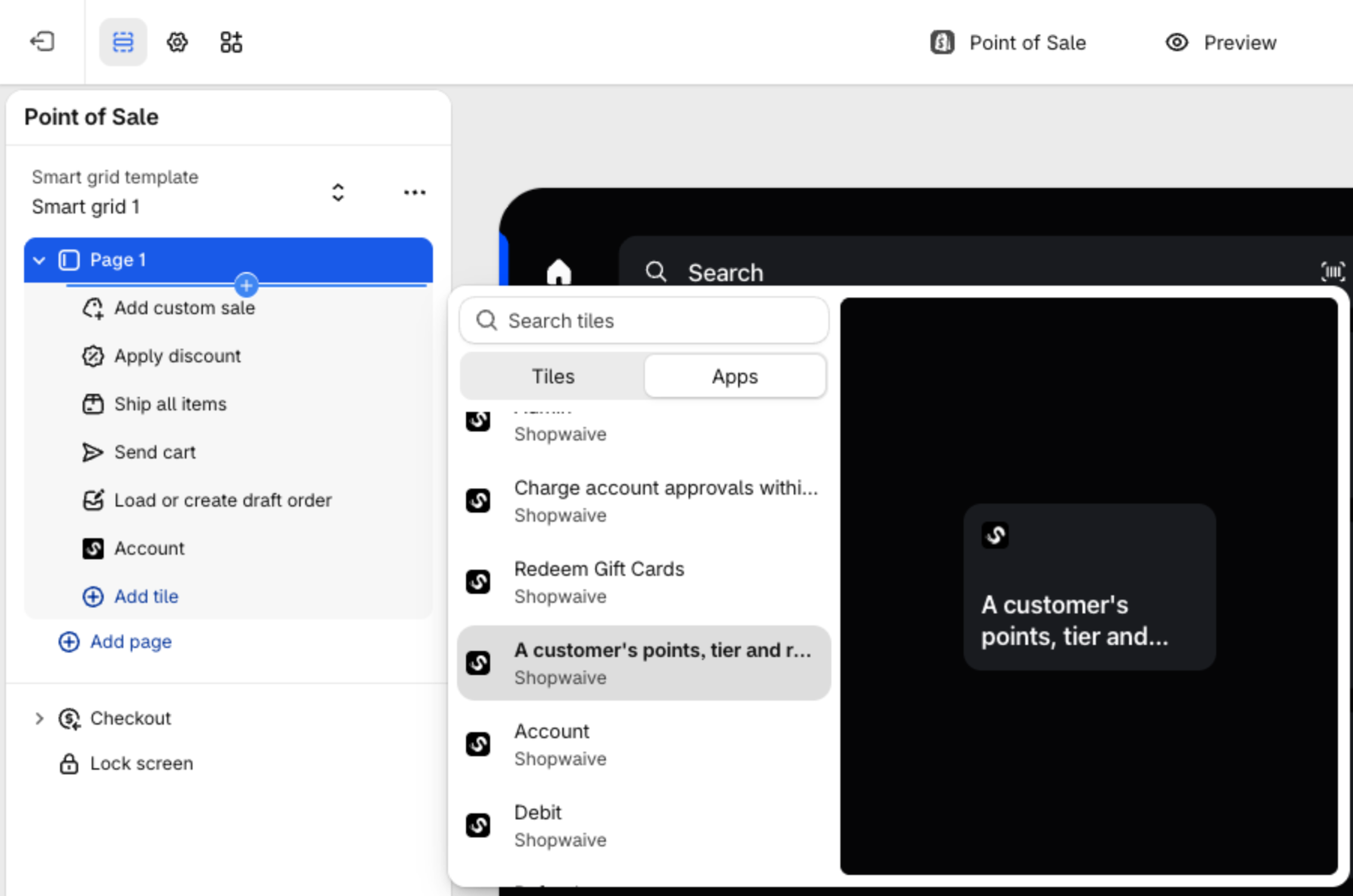
3. Under a page, click **Add tile**, then open the **Apps** tab.
4. Under **Shopwaive**, click **A customer's points, tier and rewards at the register**. That is the Loyalty tile.
5. Click **Save**. Locations that use that template show the tile.

<figure><img src="https://1743155819-files.gitbook.io/~/files/v0/b/gitbook-x-prod.appspot.com/o/spaces%2F6HSAZj4RDucpQwVtzMYt%2Fuploads%2Fgit-blob-eba234122cffea11a8228d9012fc423d0339baaa%2FS8.png?alt=media" alt="Shopify&#x27;s POS editor: Add tile, the Apps tab, Shopwaive&#x27;s tiles, with the Loyalty tile listed as A customer&#x27;s points, tier and rewards at the register"><figcaption><p>In Shopify's POS editor, the Loyalty tile is listed under Shopwaive as "A customer's points, tier and rewards at the register"</p></figcaption></figure>

On a POS device, tapping **Add tile**, then **Loyalty**, adds the tile only at the location that device is logged in to.

Then, at the register:

1. Add a customer to the sale and tap the tile. It shows the customer's points, what the sale earns, and the rewards the customer can use.
2. To use a reward, tap **Redeem** next to it. The reward is added to the sale as a discount.

A customer with no email on file cannot use rewards. The tile shows points only while your program is **Live**: in every other status it shows no points for anyone. If a device does not show the tile's latest version, close the POS app and open it again.

## Test with a few customers <a href="#test-with-a-few-customers" id="test-with-a-few-customers"></a>

On step 2, click **Test with a few customers first**, add up to 20 emails, each of a customer of your store, and press **Start test**.

* Only the customers you list earn points, on their real orders. Every other order is worked out and nothing is paid.
* Nobody sees the program on your store or at the register while you test, your test customers included. Shoppers see the program once you go live.
* In Test only orders earn: points for joining and the anniversary gift start when you go Live.
* **Start test** opens step 3. When you are ready, click **Finish later**, then press **Go Live** at the top of the Loyalty page. **Stop test** turns the program **Off**.

## Go Live <a href="#go-live" id="go-live"></a>

Press **Go Live**. Customers earn on orders from now on. The points show in their balance a few minutes after payment, or after the moment you chose under **Added**: a few minutes after the order ships, or after delivery and the wait you chose.

* Points for joining go to each new customer with an email, a guest at checkout included, once. Customers who were your customers before you went Live get no joining points.
* Points are paid only to customers with an email on file: see [Customers with no email](#customers-with-no-email). Buying a gift card earns nothing. The part of an order paid with points earns no points.
* In the first 14 days, on a very busy day, some points are added the next day.
* If your store has no balance history yet, starting a test or going Live also sets your store's balances to points at the points value you chose, and **Settings** shows the same.

Before you go Live, step 2 reads **Ready to go live**, or says how many checks to fix. Click **Show checks** to see them.

## Where customers spend points <a href="#where-customers-spend-points" id="where-customers-spend-points"></a>

* **On Shopify Plus**: at checkout, in the **Loyalty** block, and at your register in Shopify POS.
* **On any other Shopify plan**: at your register in Shopify POS, from the **Loyalty** tile. Using points in online checkout needs Shopify Plus.
* **Without Shopify Plus or Shopify POS**: customers collect points and see them, but cannot spend them.

Points are never used by themselves: the customer, or your staff at the register, chooses to use them. See [Redeem, expiry and refunds](/shopify/loyalty/redeem-expiry-and-refunds.md#where-customers-spend-points).

## The Loyalty page once your program runs <a href="#the-loyalty-page-once-your-program-runs" id="the-loyalty-page-once-your-program-runs"></a>

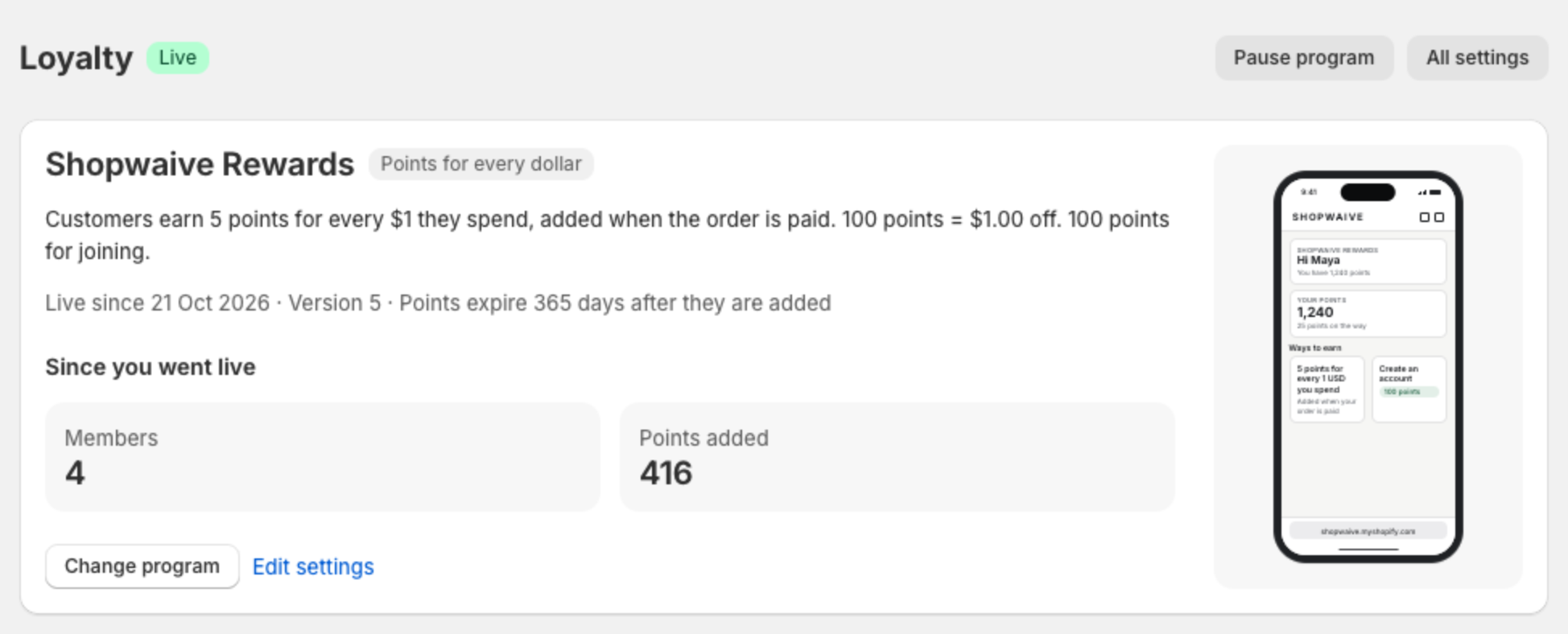
The page shows your program's name, with the ready program it came from beside it. One sentence gives the program, for example: "Customers earn 5 points for every $1 they spend, added when the order is paid." Below it: when it went Live, the version it runs, and the members and points added since then.

<figure><img src="https://1743155819-files.gitbook.io/~/files/v0/b/gitbook-x-prod.appspot.com/o/spaces%2F6HSAZj4RDucpQwVtzMYt%2Fuploads%2Fgit-blob-47d5fa7eda56050590ec22b11aad186c84166b99%2Floyalty-live-program.png?alt=media" alt="The Loyalty page header and program card: the program name and its sentence, Live since, version, expiry, Members, Points added, Change program and Edit settings"><figcaption><p>Your program at a glance, with Change program and Edit settings</p></figcaption></figure>

* **Change program**: switch to another ready program. Customers keep the points they have, and orders placed after you switch earn with the new values.
* **Edit settings** opens **All settings**, every setting of your program: see [All settings](/shopify/loyalty/all-settings.md).
* **Your Rewards page**: how many places your program is on, the look you chose and your Rewards page's address. **Edit page** opens step 3 again while your program is Live or in Test. **Hide** folds the card away. **Show the Rewards page guide** brings it back.
* At the top of the page: **Pause program** while Live, and **View Rewards page** once your Rewards page is on your store. **Resume** while Paused. **Go Live** or **Stop test** while you test.

### Going back <a href="#going-back" id="going-back"></a>

* On step 2, **Back** returns to step 1. In a program change it reads **Cancel**.
* Step 3 has no Back. Leave it with **Finish later** or **Done**. **Edit page** brings you back to it.
* **Change program** opens step 1 again. Customers keep their points.

## Program status <a href="#program-status" id="program-status"></a>

Every status can be chosen in **All settings** > **Status and testing**.

<figure><img src="https://1743155819-files.gitbook.io/~/files/v0/b/gitbook-x-prod.appspot.com/o/spaces%2F6HSAZj4RDucpQwVtzMYt%2Fuploads%2Fgit-blob-fb016ce054975ee8ec3dc1c23fcbefbc106c2083%2Floyalty-status-testing.png?alt=media" alt="All settings, Status and testing: the program status, the Status menu and the checks before going Live"><figcaption><p>Choose any status in All settings, Status and testing</p></figcaption></figure>

| Status                     | What happens                                                                                                                                                   |
| -------------------------- | -------------------------------------------------------------------------------------------------------------------------------------------------------------- |
| **Off**                    | Nobody earns points and no order is watched. Every store starts here.                                                                                          |
| **Test**                   | Only the customers you list earn points, on their real orders. Shoppers see the program once you go live. Every other order is worked out and nothing is paid. |
| **Preview on real orders** | Every real order is worked out, and no points are paid.                                                                                                        |
| **Live**                   | Every customer earns points on every order.                                                                                                                    |
| **Paused**                 | Only for a program that is Live. Points wait and nothing new is paid. Going Live again pays every point that waited.                                           |

* If you set a Live program **Off** and later go **Live** again, the orders placed while it was Off earn too, once you go Live again.
* Shoppers see the program only while it is **Live**. In every other status, the **Loyalty** block at checkout shows nothing and the **Loyalty** tile shows no points.
* After **Paused**, go **Live** before you choose **Test** again: the points that waited are owed to every customer, not only the ones you list.
* **Test** and **Live** need a paid Shopwaive plan.

## Each customer who earns becomes a Shopwaive customer <a href="#each-customer-who-earns-becomes-a-shopwaive-customer" id="each-customer-who-earns-becomes-a-shopwaive-customer"></a>

The first time your program adds points for a customer who has no Shopwaive balance, Shopwaive creates a balance for them, so they become a Shopwaive customer. Account usage on your **Billing** page counts Shopwaive customers, so a program that pays many customers, for example points for joining to every new customer, raises your account usage. See [Pricing](/shopify/pricing.md).

## Customers with no email <a href="#customers-with-no-email" id="customers-with-no-email"></a>

Points are paid only to a customer with an email on file. If a customer has no email, for example one added at the register with a phone number only, add their email before the sale: points that come due while the customer has no email are not paid then. With the starting value of **Customers with no email**, an order whose points are not due yet, for example one that waits for delivery, still earns if the customer has an email by the time they are due: see [All settings](/shopify/loyalty/all-settings.md#program).

## Emails when customers earn <a href="#emails-when-customers-earn" id="emails-when-customers-earn"></a>

Every deposit of your program reaches Klaviyo as a `Shopwaive: Balance Earned` event. To email customers when they earn, build a Klaviyo flow on it, with a filter on the event's note, typed exactly as your notes read, for example "Earned 12 Points". See [Klaviyo events](/shopify/email-and-campaigns/klaviyo-events.md).

## Switched off <a href="#switched-off" id="switched-off"></a>

* **Shopify Flow**: Shopify Flow lists Shopwaive's loyalty triggers and actions, such as **Adjust loyalty balance**. They are switched off. A workflow built on a loyalty trigger does not start, and a loyalty action stops with a message and changes nothing. Your program needs no Shopify Flow.
* **Greyed-out settings**: some settings and choices in **All settings** are greyed out. They do not work, and your program runs without them: see [All settings](/shopify/loyalty/all-settings.md).

## More about Loyalty <a href="#more-about-loyalty" id="more-about-loyalty"></a>

* [All settings](/shopify/loyalty/all-settings.md): every tab of your program's settings.
* [Redeem, expiry and refunds](/shopify/loyalty/redeem-expiry-and-refunds.md): what points are worth, where customers spend them, when they expire, and what happens on a refund.
* [Change log](/shopify/loyalty/change-log.md): every settings change, with who made it and when.
* [Loyalty for developers](/shopify/loyalty/for-developers.md): the REST API reads.
* [Loyalty FAQ](/shopify/loyalty/faq.md).